Enable a custom app from the Shopify store owner's account:
Log in to your Shopify store as the store owner.
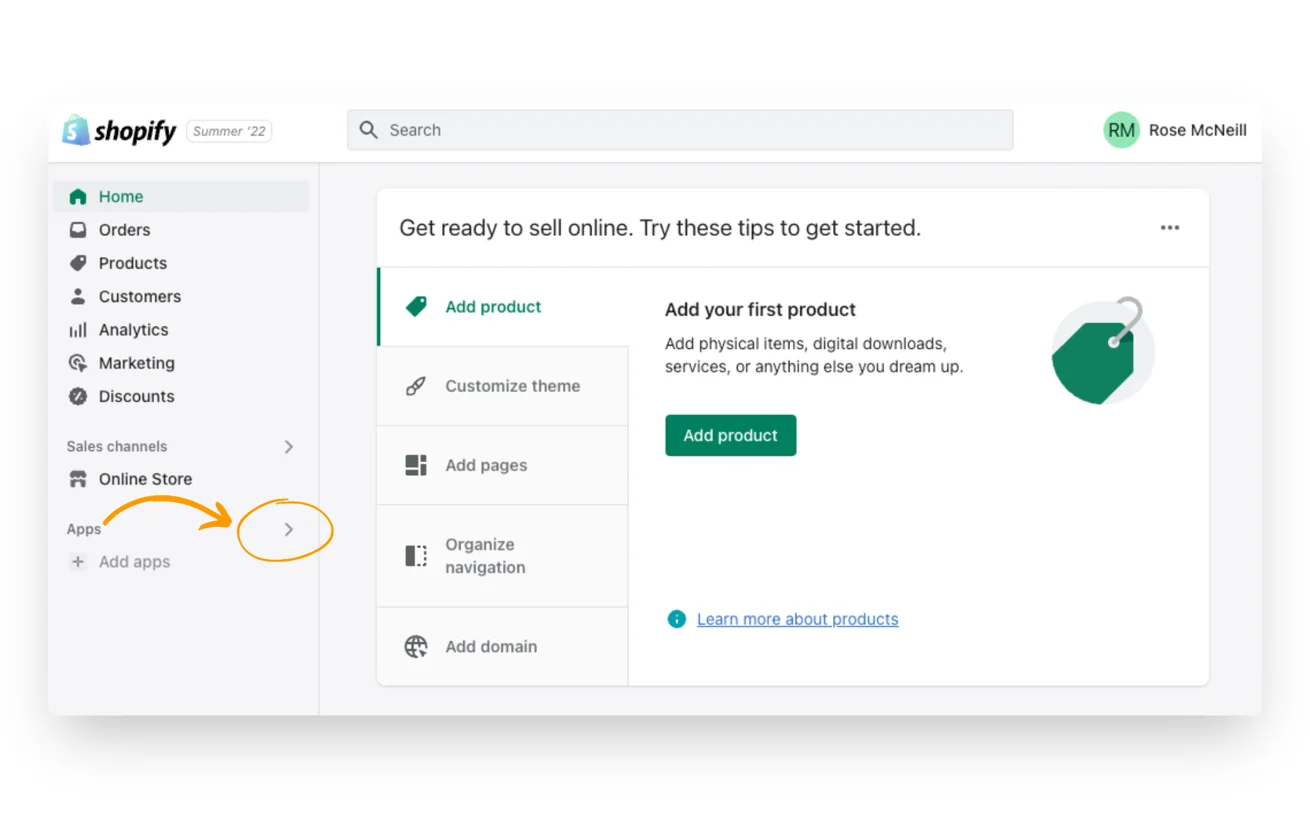
Click on "Apps" in the admin section on the left sidebar.
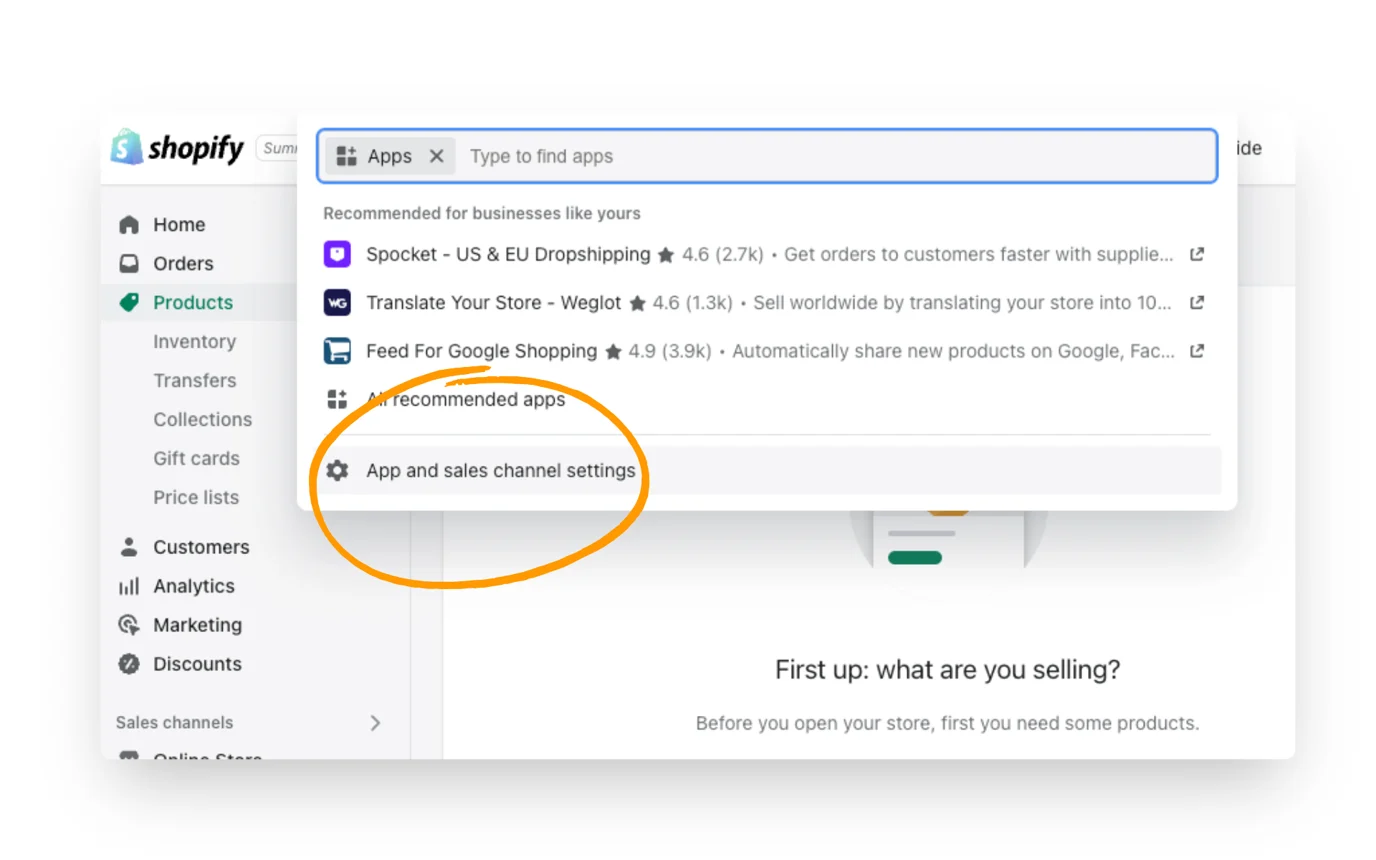
In the dropdown menu, select Apps and sales channels settings.
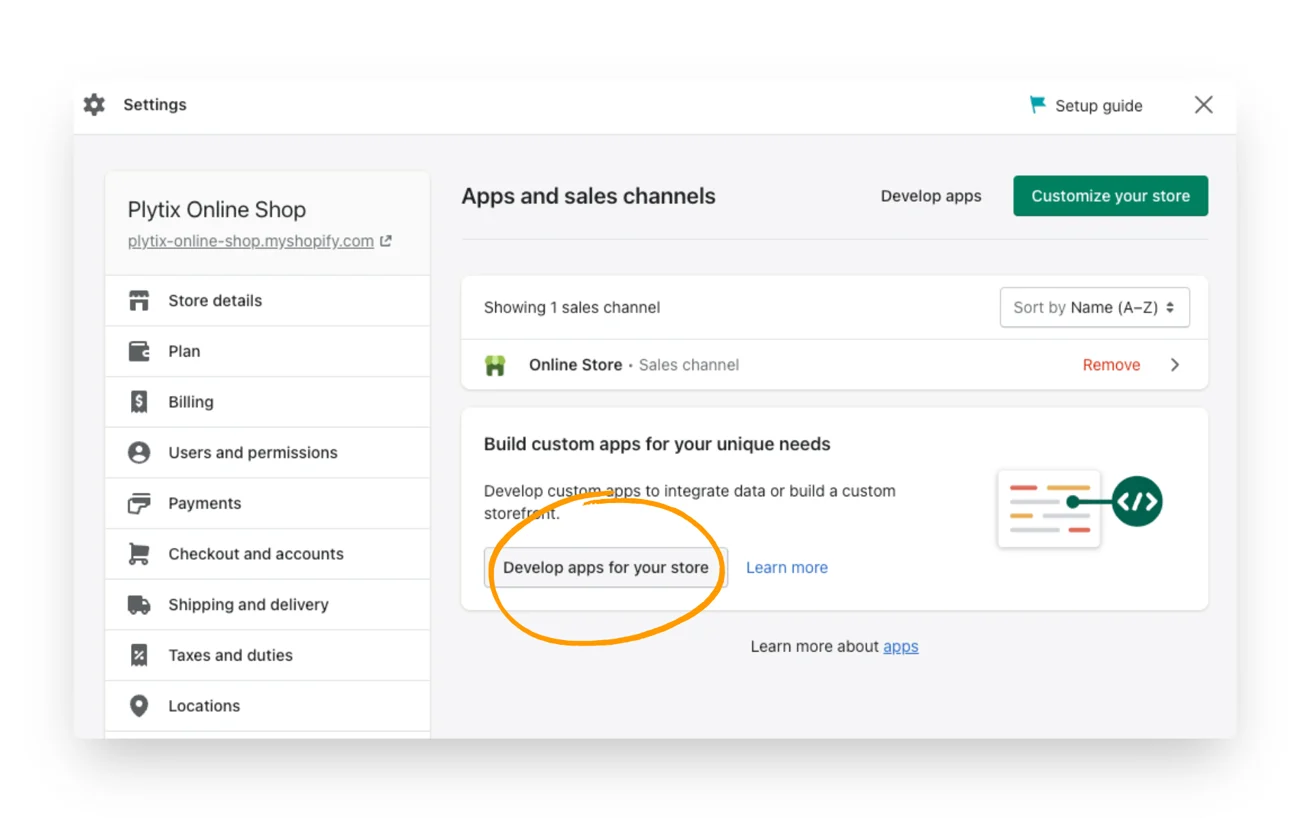
In the next window, select Develop apps for your store.
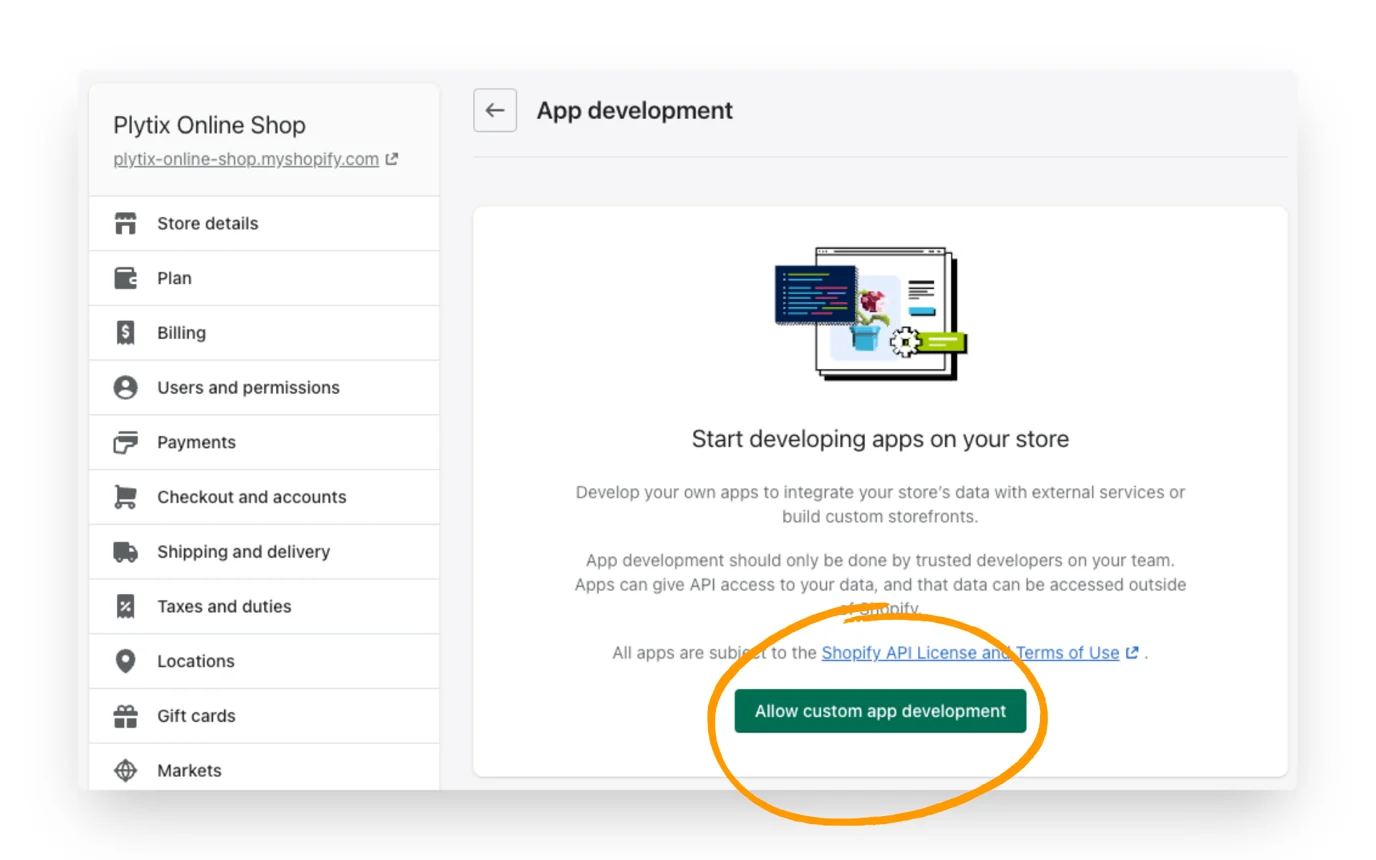
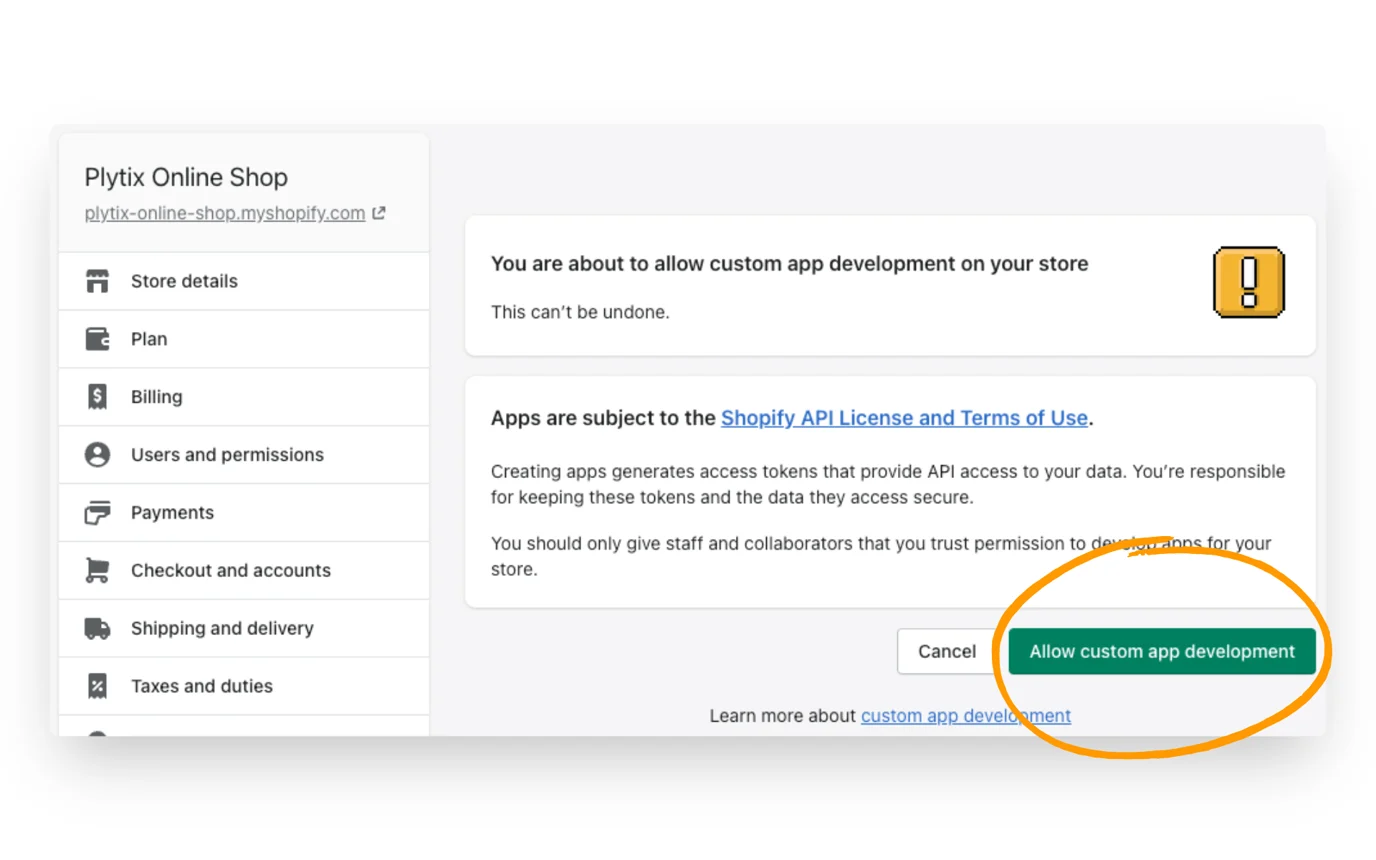
Select Allow Custom App Development.
Read the warning and information provided, then select Allow Custom App Development again.
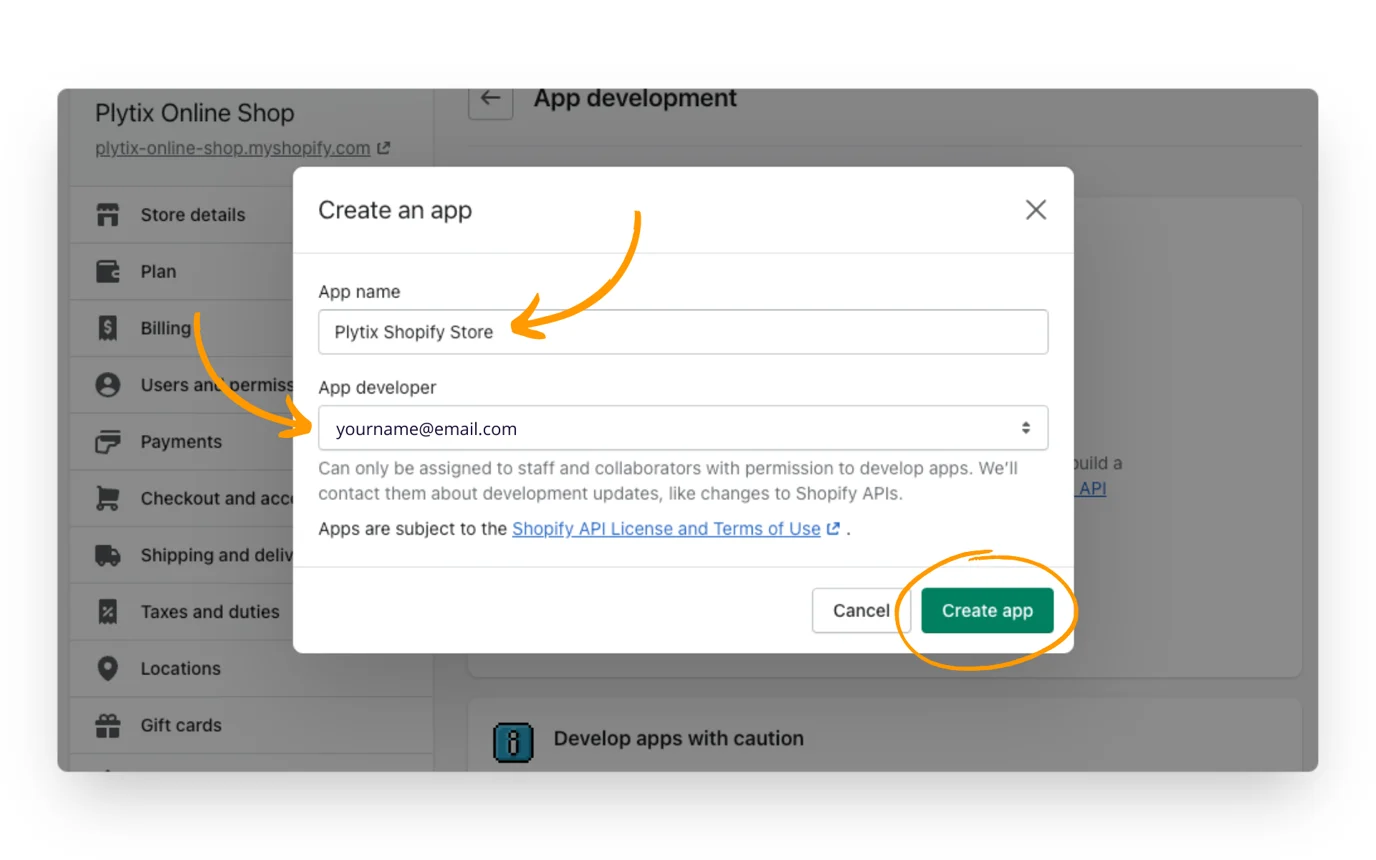
After allowing custom app development, select Create an app.
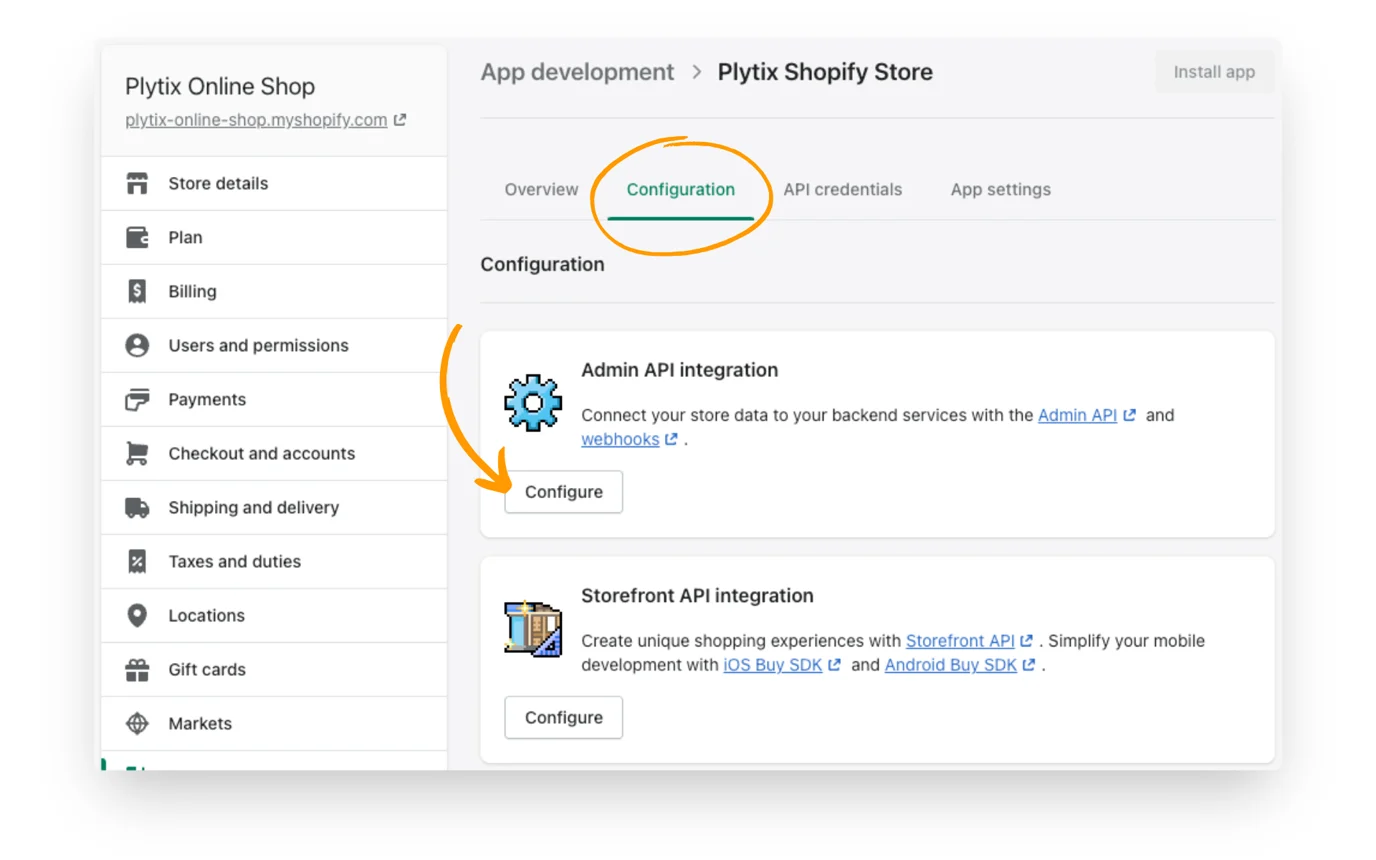
After creating the app, open the Configuration tab and select Configure in the Admin API Integration section.
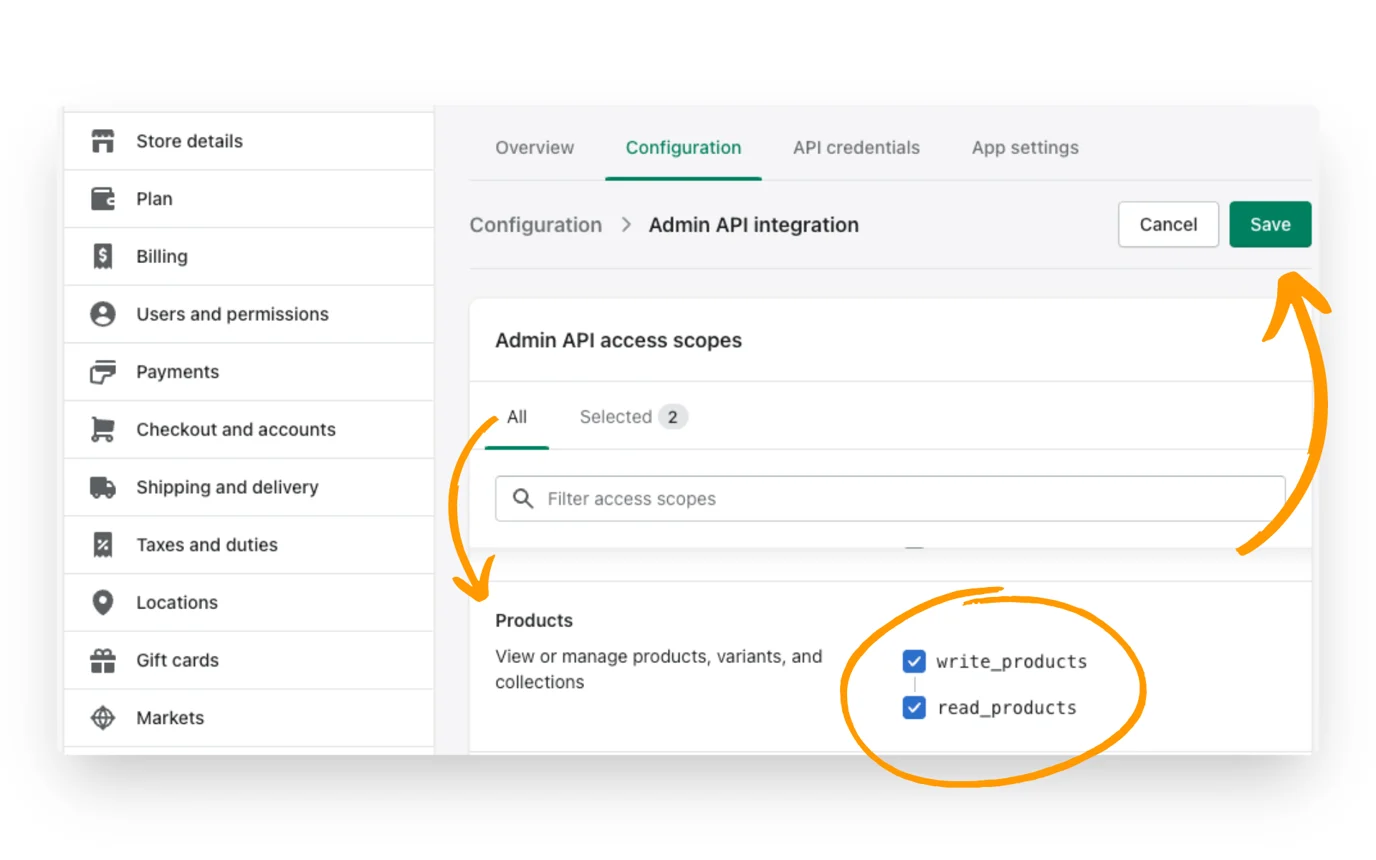
Under Admin API access scopes, select all the scopes shown below, then select Save. Both read and write permissions are required to update inventory and fulfil orders.
Assigned fulfillment orders
Draft order
Fulfillment services
Inventory
Locations
Merchant-managed fulfillment orders
Order editing
Orders
Product
Returns
Third-party fulfillment orders
Generate an API access token from Shopify admin:
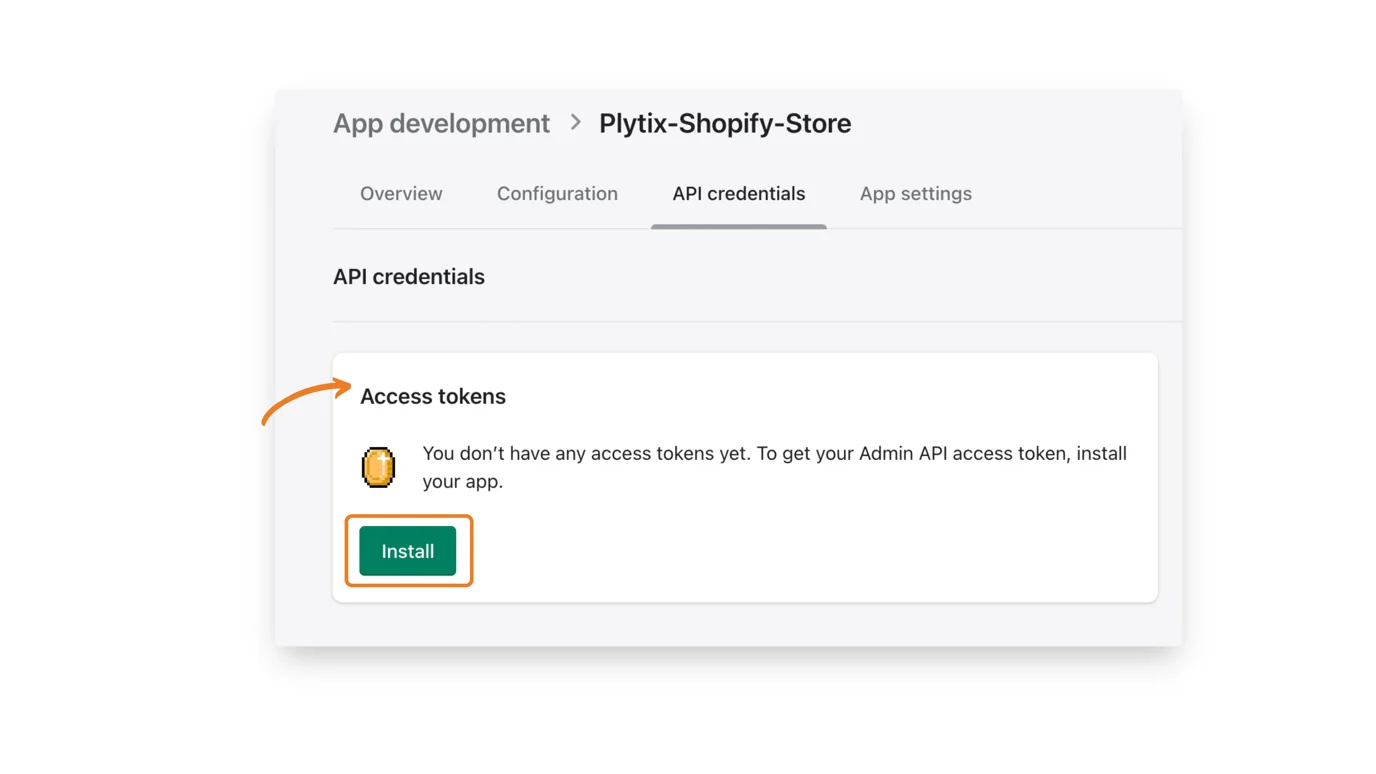
Open the API Credentials tab.
Select Install in the Access tokens box.
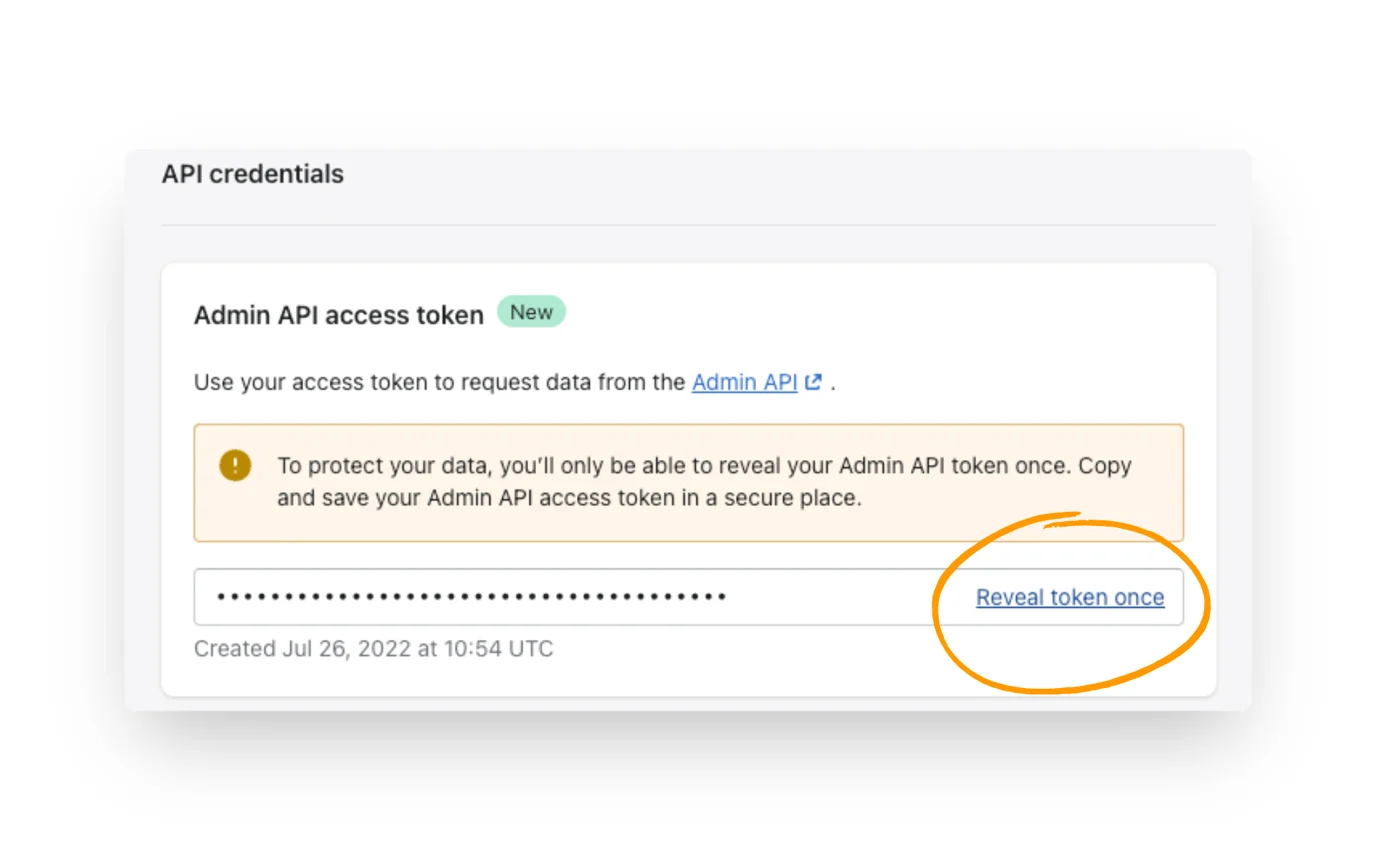
After the Admin API access token is generated, select Reveal token once to view it.