BoostWare API Management
Manage your API keys and integrations with BoostWare Fulfillment from this page.
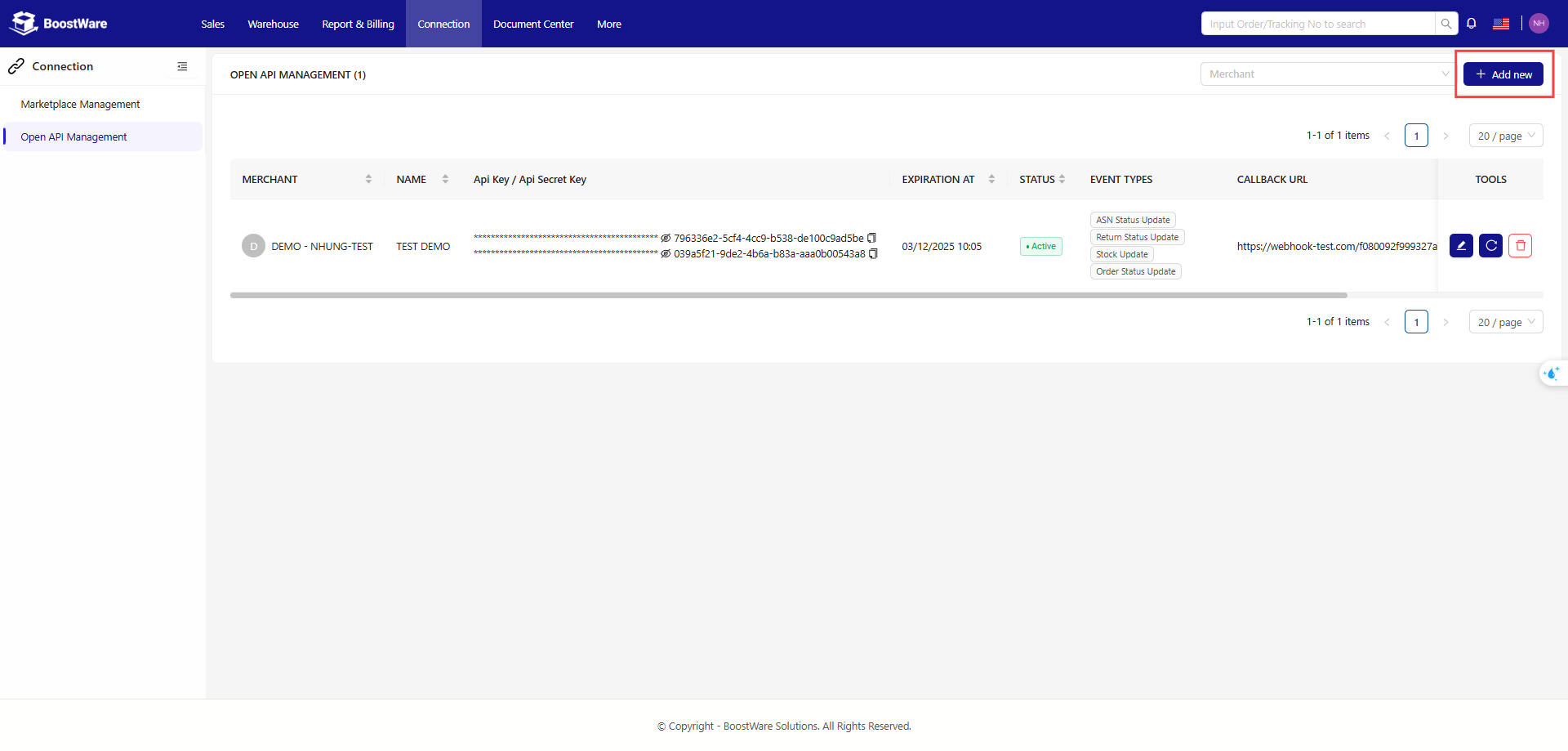
Above the table, you can filter through all your integrations by merchant with the dropdown input field, or add a new integration by clicking the "Add new" button.
The table lists all the active integrations that you have created.
Refer to the API DOC for working with the BoostWare Fulfillment API.
Add new integration
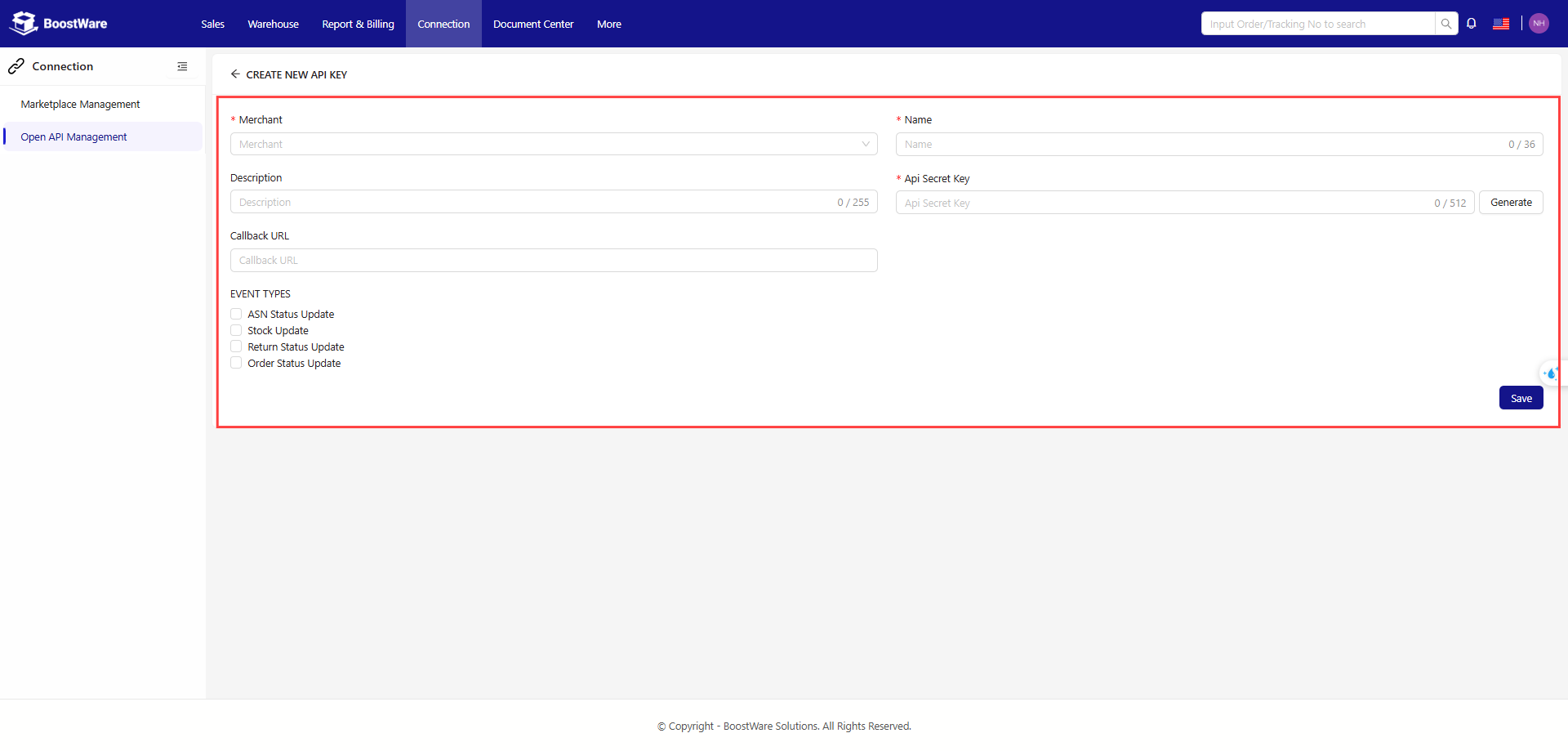
Fill in the required fields to create a new API key for your use.
- Merchant: The merchant that this API key will be used for.
- Name: A name to identify your integration.
- Description: Additional description for your integration.
- API Secret Key: A custom key for authenticating requests to the BoostWare Fulfilment API.
- Callback URL: The URL that our app will call when an event is triggered (see Event Types below).
- Event Type: Lists the event types
Event Types
Available webhook events for you to subscribe to.
- Return Status Update
- Order Status Update
- ASN Status Update
- Stock Update
Table
Lists the details of your created API keys.
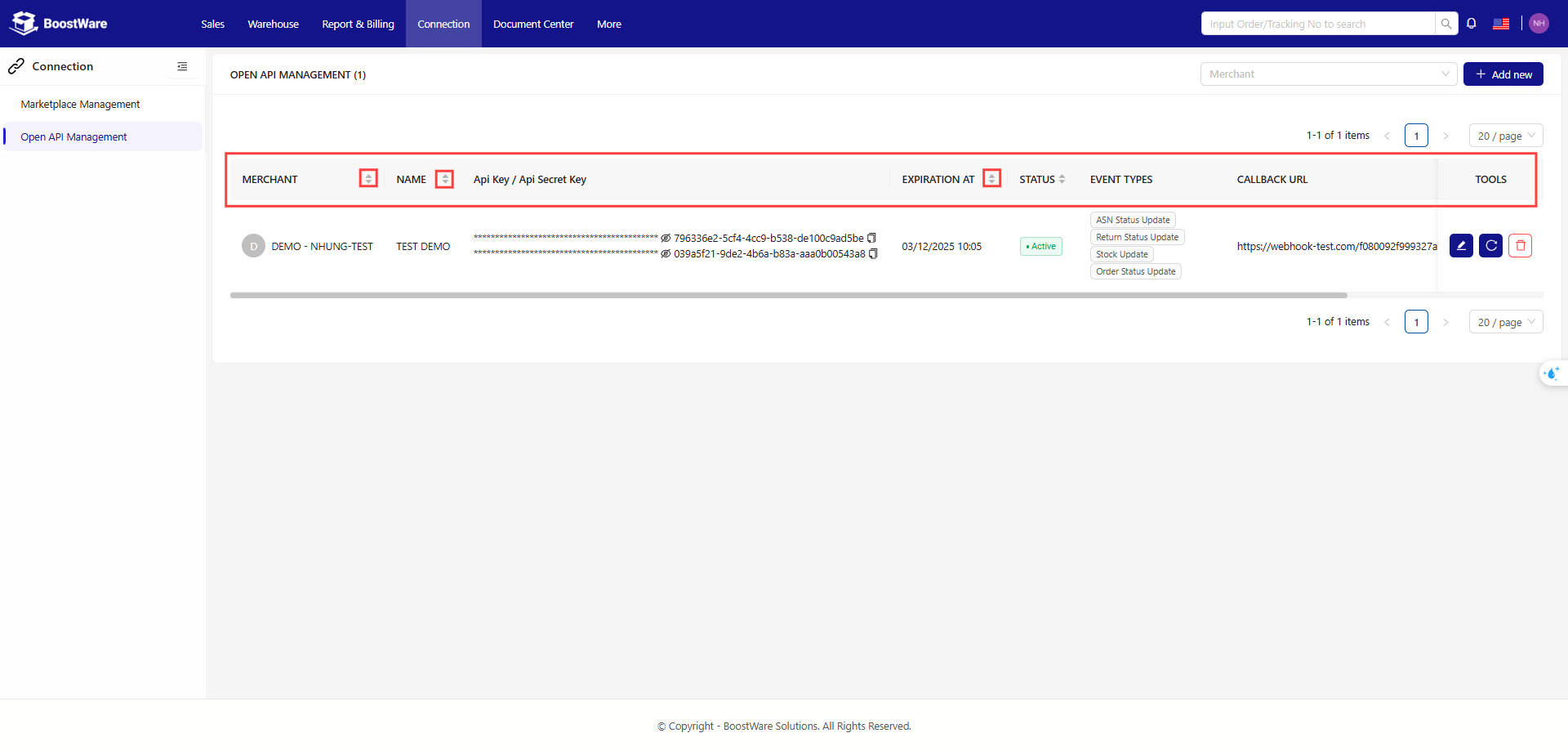
You can edit, re-connect or delete each API key individually using the following tools.
.png)
The available options to edit are the same as when creating a new key, with the added option of activating or deactivating the selected key.